VM-Based NAS & File Server
A virtualized NAS running on a Windows 11 Pro host to centralize storage for photos, projects, and data.
Overview
This NAS runs as a virtual machine on a Windows 11 Pro host. It acts as my central storage hub for photography sets, website assets, project files, and backups. The goal was to get the benefits of a dedicated NAS while using existing hardware and keeping the setup flexible for future upgrades.
Host & VM Setup
The host system is built around an Intel Core i9-13900K with 96 GB of DDR5 RAM and runs virtual machines using Microsoft Hyper-V.
Storage: Two 14 TB HDDs are configured in RAID 1 for drive-level redundancy. The virtual machines use dynamic VHDX disks, which expand as needed instead of reserving full size immediately. This makes VM storage easier to manage and portable if I need to migrate or restore.
SMB Shares & Access
At the moment, SMB access is restricted to a single user account—my primary Windows user, “Eric”. This ensures only authenticated devices I control can read or write to the NAS.
In a corporate or enterprise environment, this would typically be integrated with Active Directory, allowing domain users and groups to manage access through centralized authentication. While I’m not using AD in my current homelab setup, the NAS is capable of supporting it.
On Windows 11, I access the NAS by mapping a network drive using the UNC path \\File\.
The NAS is also reachable directly by IP at 192.168.1.5.
Photos & Screenshots
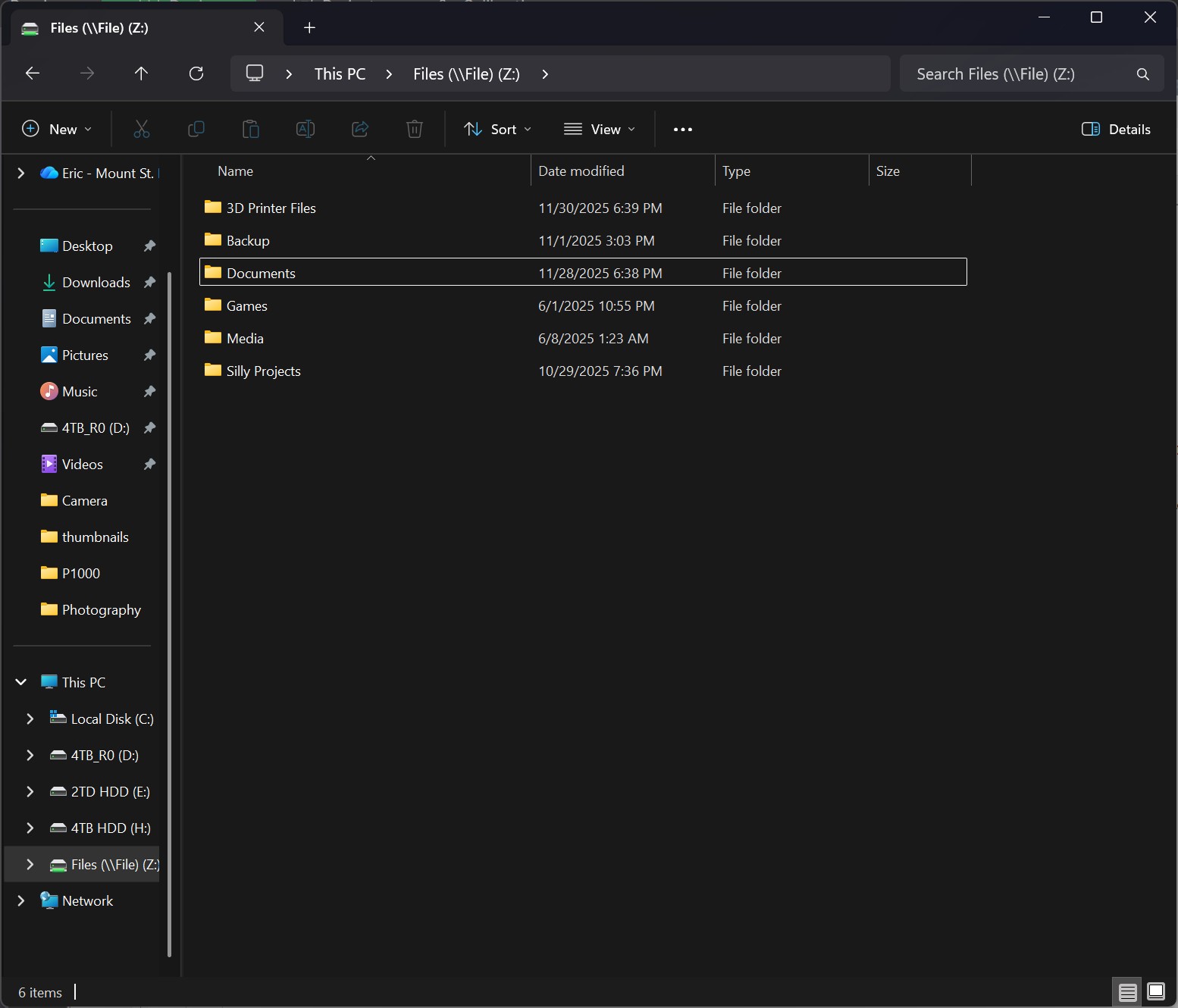
© Delaplaine Digital Solutions — All images on this page are copyrighted.
Issues & Lessons Learned
I ran into performance issues when working with large photography files stored on the NAS. Because the NAS runs inside a virtual machine backed by mechanical hard drives, large images were slow to load, preview, and transfer over SMB. Windows Explorer would often pause during file copies, causing speeds to spike and then drop to zero before resuming.
Browsing large folders of high-resolution photos also added overhead because SMB must pull file metadata and generate thumbnails across the network, which increased delays.
These issues came down to three factors working together: large file sizes, SMB overhead, and the performance limitations of running a NAS inside a VM on spinning disks. After optimizing the storage layout and adjusting how the NAS VM handled its virtual disk configuration, performance improved and file access became much more responsive.